Hunter Douglas PowerView Troubleshooting
PowerView® Troubleshooting Guide for Hunter Douglas Shades
If your Hunter Douglas PowerView® shades are not responding to the remote, app, hub, gateway, or wall control, start with these practical checks before assuming the motor needs repair.
PowerView motorized shades are convenient when everything is synced, charged, and connected correctly. But when one shade stops moving, the app loses connection, or the remote does not respond, the problem can come from several different places: batteries, remote settings, hub connectivity, programming, limits, or the motorized shade itself.
This guide walks through the most common PowerView troubleshooting steps homeowners can try first. If the shade still will not respond after the basic checks, Ogden Blinds provides Hunter Douglas PowerView service and blind repair throughout Oswego, Naperville, Aurora, Plainfield, the Fox Valley area, and nearby Chicago suburbs.
Need Help After Troubleshooting?
If your PowerView shade still will not respond after checking the batteries, remote, app, and hub connection, the next step may be professional service.
Start With These Quick Checks
Before resetting anything, work through the simple items first. Many PowerView problems are caused by low power, a disconnected hub, or a remote that is no longer controlling the shade group you expect.
Check Power
Dead batteries, a loose battery wand, or a disconnected power supply can make a shade look like it has failed.
Check Controls
If the remote works but the app does not, or the app works but the remote does not, the issue may be programming or connectivity.
Watch The Shade
Grinding, uneven movement, flashing lights, or stopping short may point to a mechanical or motor issue.
1. Check The Shade’s Power Source
The most common reason a Hunter Douglas PowerView shade stops responding is simple: the shade is not getting consistent power.
- Replace the batteries in the battery wand if your shade uses standard batteries.
- Make sure the battery wand is fully connected to the motor lead.
- If your shade uses a rechargeable battery pack, confirm that it is charged and seated correctly.
- If your shade is plugged into a power supply, make sure the outlet and transformer are working.
- Press the manual control button on the headrail and watch for a light or shade movement.
Use good-quality batteries and replace the full set at the same time. Weak or mixed batteries can create inconsistent performance, especially with motorized shades that need steady voltage.
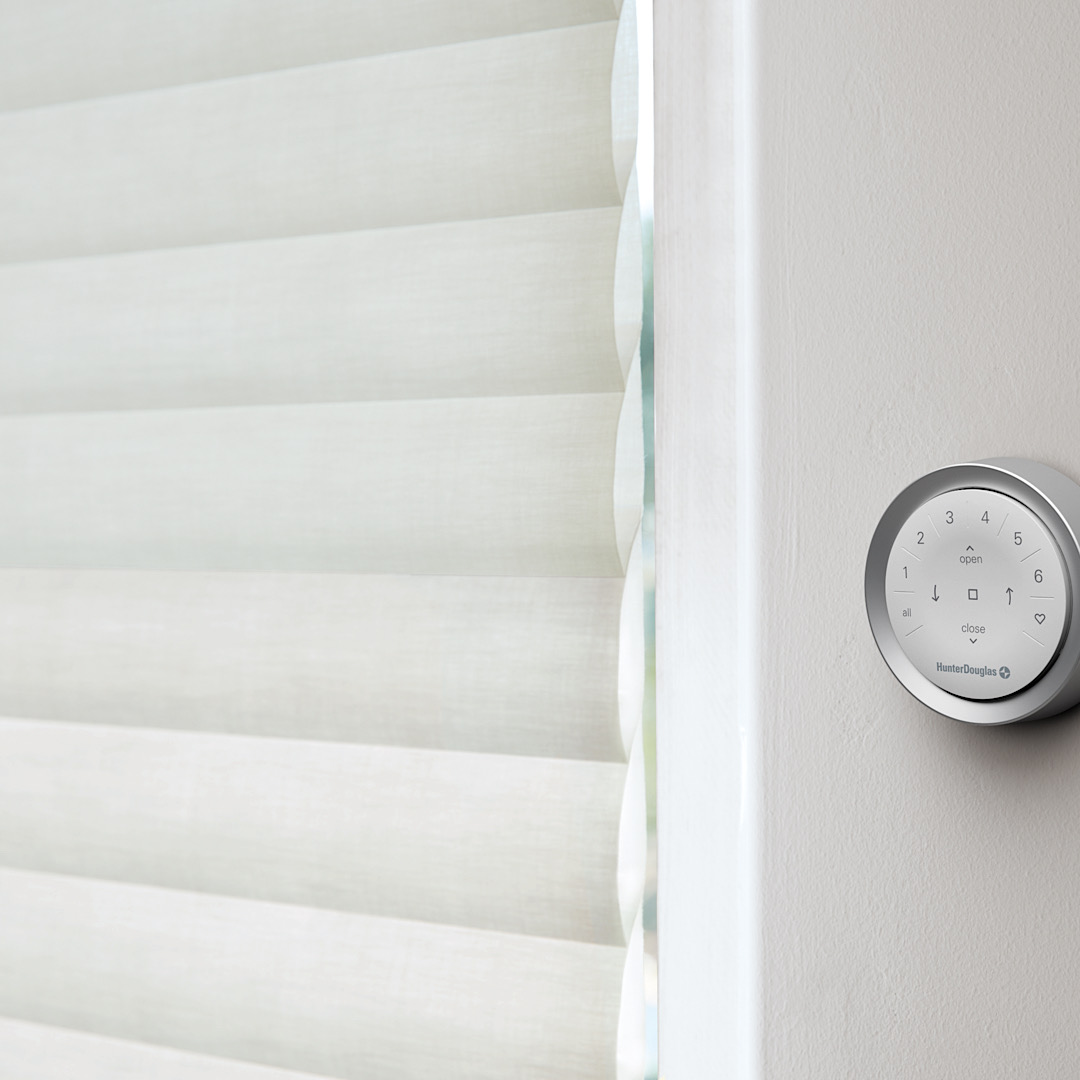
2. Check The Pebble® Remote Or Wall Remote
If your shade has power but does not respond to the remote, the issue may be with the remote batteries, group selection, or programming.
- Replace the remote batteries if the buttons do not light up or the lights appear weak.
- Make sure the shade is assigned to the group you are trying to control.
- Try controlling a different shade from the same remote to see whether the problem is the remote or one specific shade.
- If only one shade fails to respond, the shade may have lost programming or may need service.
Remote Works, But One Shade Does Not?
If other shades respond but one shade does not, focus on that individual shade. Check its power source, manual button, and whether it still appears in the app. A single unresponsive shade often points to a shade-specific power, programming, or motor issue.
3. Check The PowerView App, Hub, Or Gateway
If your remote works but the app does not, the issue is usually not the shade itself. It may be a hub, gateway, Wi-Fi, app, or account connection problem.
- Confirm your phone or tablet is connected to the correct Wi-Fi network.
- Check whether the PowerView Hub or Gateway is powered on.
- Restart your router, then restart the PowerView Hub or Gateway.
- Open the PowerView app and check whether the shade still appears in the correct room or group.
- If the app and remote disagree, the system may need to sync shade memory or be reconfigured.
Not every PowerView system is the same. Older Legacy PowerView systems and newer PowerView Gen 3 systems use different app, remote, hub, and gateway setups. If you are not sure which system you have, Ogden Blinds can help identify it before recommending a repair or reset.
4. Try A Basic Shade Reset Or Recalibration
If the shade has power but is not responding correctly, a basic reset or recalibration may help. On many PowerView shades, the manual control button on the headrail can be used to wake the shade, jog the motor, or help reset communication.
Find The Manual Control Button
This is usually located on or near the shade headrail, depending on the product type and motor generation.
Press And Hold Carefully
A short hold may cause the shade to jog. Avoid performing a full factory reset unless you know the correct process for your system.
Test The Remote And App Again
After the shade jogs or reconnects, test the remote, app, and any programmed scenes or schedules.
If you are unsure which reset process applies to your shade, it is better to stop before wiping programming. Factory resets can create more work if the remote, app, groups, scenes, or limits need to be rebuilt.
5. Look For Signs The Problem Is Not Just Programming
Some PowerView problems are not solved by replacing batteries or reconnecting the app. If the shade itself is struggling to move, the issue may involve the motor, lift system, roller tube, limits, power supply, or internal shade components.
- The motor makes noise, but the shade does not move.
- The shade moves unevenly or telescopes to one side.
- The shade stops short or loses its upper and lower limits.
- The headrail light flashes even after fresh batteries are installed.
- The shade moves from the manual button but not from the remote or app.
- The app shows the shade, but commands fail or time out.
- The shade worked before a Wi-Fi, router, phone, or app change and now will not reconnect.
When Troubleshooting Is Not Enough
If your PowerView shade still is not working after checking power, remote batteries, app connection, and hub or gateway status, the issue may need professional service. Ogden Blinds can inspect Hunter Douglas motorized shades and help determine whether the problem can be solved through reprogramming, replacement parts, power supply correction, or shade repair.
As a Hunter Douglas Authorized Service Center, Ogden Blinds works with Hunter Douglas products beyond the original installation. That experience matters when a motorized shade needs more than a basic reset.
Before You Call, Have This Information Ready
A few details can make PowerView troubleshooting faster, especially if replacement parts or warranty information may be involved.
- Whether the shade uses batteries, a rechargeable pack, or a plug-in power supply.
- Whether the remote, app, wall control, or all controls have stopped working.
- Whether one shade is affected or multiple shades are affected.
- Whether you have a PowerView Hub, Gateway, or app-only setup.
- The approximate age of the shade or original Hunter Douglas order information if available.
- Any lights, sounds, uneven movement, or error messages you have noticed.
Still Having PowerView Problems?
If your Hunter Douglas PowerView shade still will not respond after these troubleshooting steps, Ogden Blinds can help with motorized shade service, PowerView troubleshooting, and Hunter Douglas blind and shade repair in Oswego, Naperville, Aurora, Plainfield, and nearby suburbs.
PowerView Troubleshooting FAQ
Why is my Hunter Douglas PowerView shade not responding?
The most common causes are low batteries, a disconnected battery wand or power supply, remote programming issues, app or hub connectivity problems, or a shade-specific motor issue.
Why does my PowerView remote work but the app does not?
If the remote works but the app does not, the shade may still be functional while the hub, gateway, Wi-Fi connection, app setup, or shade memory sync needs attention.
Why does the PowerView app work but the remote does not?
The remote may need new batteries, the shade may not be assigned to the correct group, or the remote may need to be reconfigured depending on the PowerView generation.
Can Ogden Blinds help with Hunter Douglas PowerView service?
Yes. Ogden Blinds provides Hunter Douglas PowerView troubleshooting and service for homeowners throughout Oswego, Naperville, Aurora, Plainfield, the Fox Valley area, and nearby Chicago suburbs.
Should I reset my PowerView shade myself?
Basic troubleshooting is usually fine, but avoid a full factory reset unless you know the correct process for your PowerView system. A full reset can erase programming and create more setup work.